

Visitors judge your website in under three seconds. If your pages take longer than that to load, a significant share of those potential customers will leave before they ever see what you offer. For small business owners and self-employed professionals, that kind of drop-off is not just frustrating — it is expensive. Every slow-loading page is a missed inquiry, a lost sale, or a client who chose a competitor simply because their site was faster. This guide walks you through exactly why speed matters, what tools you need, how to fix the most common problems, and how to confirm that your improvements are actually working.
Why Website Speed Matters for Small Businesses
Speed is not just a technical concern. It is a business concern. When a visitor lands on your site, the time it takes to load shapes their first impression of your brand. A slow website feels unreliable. A fast one signals that you take your business seriously.
The numbers behind visitor behavior tell a clear story:
- 53% of mobile users abandon a site that takes more than three seconds to load
- Pages that load in one second convert three times better than pages that take five seconds
- A bounce rate increases sharply when load time exceeds two seconds
- Google uses page speed as a ranking factor, meaning a slow site is harder for new customers to find
"A one-second delay in page response can result in a 7% reduction in conversions."
That seven percent may sound modest, but apply it to a month's worth of traffic and it becomes a real revenue gap. For a business generating $10,000 per month through its website, that is $700 lost every month from a single second of delay.
Mobile visitors deserve special attention here. More than half of all web traffic now comes from smartphones, and mobile connections are often slower than desktop broadband. If your site is not optimized to load quickly on a mobile device, you are effectively turning away the majority of your potential visitors before they even get to your content.
Speed also plays a measurable role in search visibility. Google's Core Web Vitals — a set of performance measurements the search engine uses to evaluate pages — directly influence where your site ranks in search results. A slow site that ranks lower gets less traffic, which means fewer leads, fewer bookings, and fewer sales.
For small, local, or niche businesses, the stakes are actually higher, not lower. You may not have the ad budget of a large retailer, so your website has to work harder for every visitor it gets. Making that site fast is one of the most cost-effective investments you can make.
Essential Tools for Website Speed Optimization
Before you start making changes, you need a clear picture of where your site stands. Jumping straight into fixes without a baseline audit is like rescheduling appointments before checking your calendar. You might fix something that was not broken while missing the actual problem.
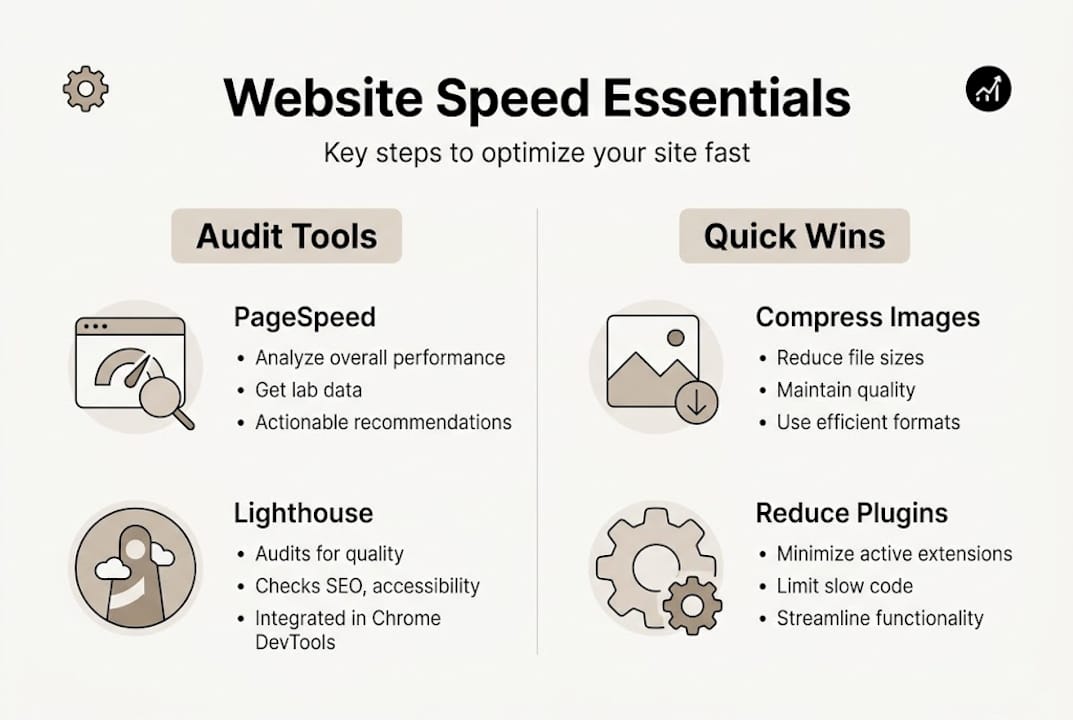
| Tool | Purpose | Cost |
|---|---|---|
| Google PageSpeed Insights | Scores your page and gives specific fix recommendations | Free |
| GTmetrix | Detailed waterfall chart showing what loads slowly | Free / Paid |
| Google Lighthouse | In-depth audit for performance, accessibility, and SEO | Free |
| WebPageTest | Tests load time from different geographic locations | Free |
| Cloudflare | CDN and caching to speed up global delivery | Free / Paid |
Before you run those audits, make sure you have the following in order:
- Hosting quality: Shared hosting on an outdated server significantly limits your speed ceiling. Upgrading to a managed or cloud-based host is often the single biggest improvement you can make.
- CMS and plugin hygiene: If you use WordPress or a similar CMS, outdated plugins and themes introduce both security risks and speed problems.
- Analytics access: Make sure Google Analytics or another tracking tool is set up so you can measure traffic behavior changes after you make improvements.
- A baseline test: Run PageSpeed Insights on your three most important pages before touching anything. Save the results so you have something to compare against.
Pro Tip: Always test your homepage, your main service page, and your contact page. These are the pages most visitors see first, and they are the pages where speed has the most direct impact on your conversion rate.
Step-by-Step Process to Optimize Your Website Speed
With a baseline audit in hand, you are ready to start making changes. The following steps are organized from easiest to most advanced.
Step 1: Compress and Resize Your Images
Images are usually the single largest contributor to slow page load times. Use a tool like TinyPNG, Squoosh, or your CMS's built-in image optimizer to reduce file sizes before uploading. Switch to modern formats like WebP, which offer better compression than JPG or PNG. Set image dimensions to match the actual display size on screen rather than uploading a 4000-pixel-wide photo to display at 400 pixels.
Step 2: Audit and Remove Unnecessary Plugins
Every plugin you install adds code that browsers have to download and process. If a plugin does something your theme already handles, or if it is a tool you installed once and never used again, delete it. For the plugins you keep, make sure they are fully updated.
Step 3: Enable Browser Caching
Caching stores a version of your page on the visitor's device so it loads faster on repeat visits. Most hosting providers offer caching settings in their control panels. WordPress users can enable this with plugins like W3 Total Cache or WP Super Cache. For non-WordPress sites, your hosting provider's documentation will include caching instructions.
Step 4: Minify CSS, JavaScript, and HTML
Minification removes unnecessary spaces, comments, and line breaks from your site's code files. This reduces file sizes without changing how your site looks or functions. Most page builder platforms and WordPress optimization plugins handle this automatically once enabled.
Step 5: Use a Content Delivery Network (CDN)
A CDN stores copies of your site's files on servers located around the world. When someone visits your site, the CDN delivers files from the server closest to their location, reducing travel time for data. Cloudflare offers a free CDN tier that works with most website setups and requires no technical background to configure.
Step 6: Upgrade Your Hosting
If your site is on shared hosting — where your site shares a server with hundreds of others — even the best optimization work has a ceiling. Upgrading to a managed WordPress host, a VPS, or a cloud hosting provider removes that ceiling and often produces the most dramatic speed improvements of any single change.
Step 7: Implement Lazy Loading
Lazy loading delays the loading of images and videos that are not immediately visible on screen. Instead of downloading every image on the page at once, the browser only loads what the visitor can currently see, then loads the rest as they scroll. This is a built-in feature in modern browsers and can be enabled with a single attribute in your image code, or through your CMS settings.
How to Verify Improvements and Avoid Common Mistakes
Making changes without verifying results is a common and avoidable mistake. After each significant change, rerun your PageSpeed Insights test and compare the scores to your baseline. Look specifically at:
- Largest Contentful Paint (LCP): How long it takes for the main content of your page to appear. Target under 2.5 seconds.
- First Input Delay (FID) / Interaction to Next Paint (INP): How quickly your page responds to the first user interaction. Target under 200 milliseconds.
- Cumulative Layout Shift (CLS): How much your page layout shifts while loading. Target under 0.1.
These three metrics make up Google's Core Web Vitals, and they are the specific measurements Google uses to evaluate page experience for search rankings.
Common mistakes to avoid during optimization:
- Over-optimizing images to the point of visible quality loss. Test how images look on a real screen after compression, not just in an editing tool.
- Removing a plugin that something else depends on. Before deleting any plugin, check that nothing else on your site relies on it.
- Only testing on your own device and connection. Your office broadband is faster than a typical mobile connection. Use WebPageTest to simulate slower connections and different locations.
- Making multiple changes at once. Change one thing at a time and test after each change. Otherwise you won't know which fix caused which improvement.
Our Perspective: Getting Speed Right Means Making Smart Tradeoffs
Most speed optimization guides present a checklist of technical tasks. What they underemphasize is that speed optimization is a series of tradeoffs, and the right tradeoffs depend on your specific site and business.
A live chat widget adds load time but might be worth it if it meaningfully increases conversions. A large hero video slows the initial page load but might be the most compelling element on your homepage. High-resolution portfolio images matter more for a photographer than for a plumber. The goal is not a perfect PageSpeed score — the goal is a site that loads fast enough to keep visitors engaged and convert them at the highest rate possible.
For most small business sites, the highest-impact, lowest-effort changes are:
- Compress all images and switch to WebP format
- Remove unused plugins and third-party scripts
- Enable caching at the server or CDN level
- Upgrade hosting if you're on a shared plan with poor performance
Those four changes alone will move most small business sites from a slow to an acceptable load time, and from acceptable to fast if the underlying hosting is solid.
Ready to Turbocharge Your Website?
At Vegas Solutions, every site we build is optimized for speed from day one — compressed images, clean code, CDN delivery, and managed hosting that doesn't share resources with hundreds of other sites. And because we handle ongoing maintenance, your site stays fast over time instead of slowing down as content accumulates.
If you want to see what a fast, professionally maintained small business site looks like, request a free website demo and we'll show you the difference.