

Most small business owners believe their website is safe simply because it’s live and running. This dangerous assumption leaves countless businesses vulnerable to catastrophic data loss. Website backups guard against data loss caused by hacking, server crashes, and human error. Without a solid backup strategy, you risk losing years of content, customer data, and revenue in minutes. Understanding why backups matter and how to implement them properly protects your online presence and ensures business continuity when disasters strike.
Key Takeaways
| Point | Details |
|---|---|
| Backups protect data | Backups guard against data loss and downtime by enabling quick restoration after hacking incidents, server crashes, or human error. |
| Backup types matter | Full, incremental, and differential backups offer different restoration speeds and storage requirements, so choose a strategy that fits your needs. |
| Automate backups | Automated backups reduce human error and ensure regular preservation without relying on memory. |
| Test and verify backups | Regular testing confirms that your backups can be restored quickly and accurately in emergencies. |
Common risks and misconceptions about website safety
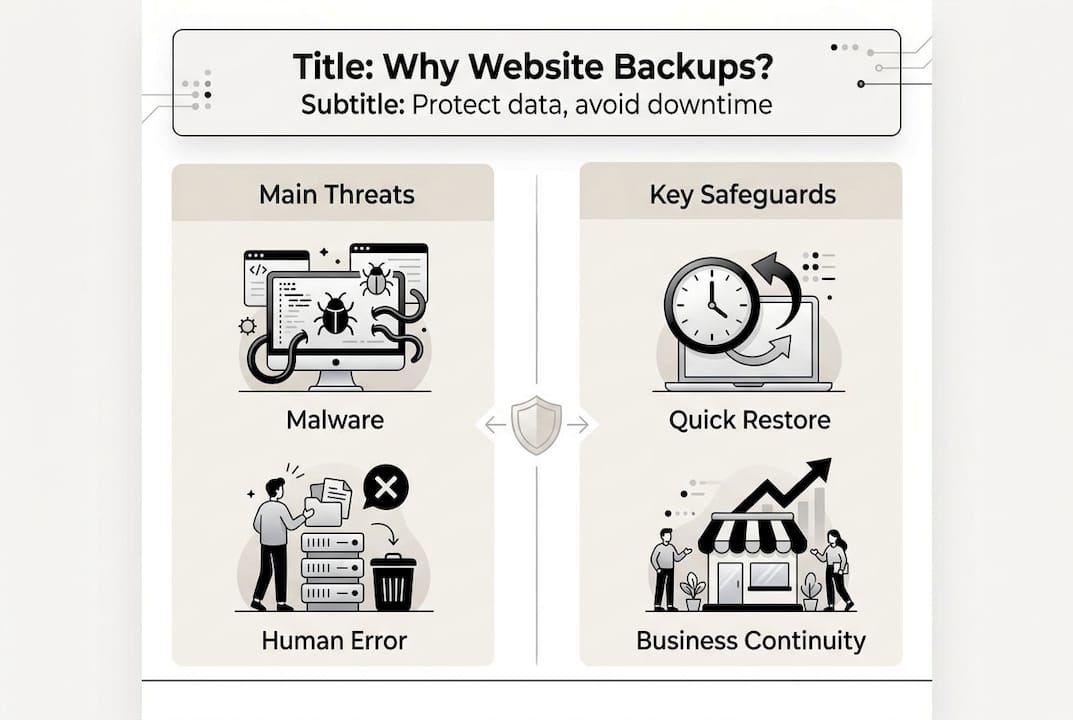
Your website faces threats every single day. Malware infections can corrupt entire databases, erasing product catalogs, blog posts, and customer information within seconds. Server hardware fails without warning, taking your site offline until repairs complete. Hosting providers experience outages that can last hours or days, leaving your business invisible to potential customers.
Human error causes more damage than most realize. A simple mistake during a plugin update can break your entire site. Accidentally deleting the wrong folder wipes out months of work. Even experienced developers make errors that require rollback capabilities.
Many business owners mistakenly believe their hosting provider handles all backup needs. While some hosts offer basic backups, these often have limitations. Backup frequency may be weekly rather than daily. Retention periods might only cover 30 days. Restoration processes can take days, not hours. Relying solely on your host puts your business at unnecessary risk.
The misconception that small businesses aren’t targets for cyberattacks proves costly. Hackers specifically target smaller websites because they typically have weaker security measures. Your site might get compromised through outdated plugins, weak passwords, or vulnerable themes. Without backups, recovering from an attack becomes exponentially more difficult and expensive.
Not having backups leads to devastating consequences. Downtime costs small businesses an average of $427 per minute according to industry data. Lost content requires weeks to recreate. Customer trust evaporates when personal information disappears. Some businesses never recover from major data loss events. Understanding website security for small businesses includes recognizing that backups form your last line of defense.
How website backups work and types available
Website backups create complete copies of your site’s files and databases, storing them securely for future restoration. Think of backups as snapshots capturing everything at a specific moment: content, images, plugins, themes, and configuration settings. When disaster strikes, you simply restore from the most recent clean backup.
Three main backup types serve different purposes:
- Full backups copy everything each time, creating complete standalone versions of your site
- Incremental backups only save changes made since the last backup of any type
- Differential backups capture all changes since the last full backup
Full backups provide the simplest restoration process but consume the most storage space. Incremental backups save storage and bandwidth but require multiple backup files for complete restoration. Differential backups balance both approaches, offering faster restoration than incremental while using less space than full backups.

Storage location matters as much as backup type. Local backups store copies on the same server as your website, providing quick access but no protection against server failures. Cloud backups upload copies to remote servers, protecting against hardware failures but requiring internet connectivity for restoration. Offsite backups keep copies in completely separate physical locations, offering maximum protection against disasters.
Pro Tip: Schedule automated backups during your lowest traffic periods, typically between 2 AM and 5 AM in your local timezone. This minimizes any performance impact on visitor experience.
Automated backups reduce human error and increase reliability compared to manual processes. Manual backups depend on someone remembering to perform them regularly. People forget, get busy, or skip backups assuming nothing will go wrong. Automated systems run on schedule without human intervention, ensuring consistent protection.
| Backup Feature | Manual Process | Automated System |
|---|---|---|
| Consistency | Depends on memory | Runs on schedule |
| Human error risk | High | Minimal |
| Time investment | 15-30 min each time | 0 min ongoing |
| Reliability | Variable | Highly consistent |
Modern backup solutions offer retention policies that automatically delete old backups while keeping recent ones. You might keep daily backups for a week, weekly backups for a month, and monthly backups for a year. This approach balances storage costs with recovery options. Quality website support for small businesses includes properly configured automated backup systems.
Choosing the right backup strategy and tools for small businesses
Selecting the right backup approach depends on several factors unique to your business. Website size affects storage requirements and backup duration. A simple five page site backs up in minutes, while a large e-commerce store with thousands of products might take an hour. Content update frequency determines how often you need backups. Static sites might only need weekly backups, but blogs publishing daily require daily protection.
Your technical skill level influences whether DIY solutions or managed services make more sense. WordPress plugins like UpdraftPlus or BackupBuddy offer user-friendly interfaces for basic backup needs. These tools work well if you’re comfortable navigating dashboards and configuring settings. However, they still require monitoring, testing, and occasional troubleshooting.
Managed backup services handle everything automatically. Professional website services often include backup and restore capabilities to protect business continuity. These services monitor backup completion, verify file integrity, and maintain multiple restore points without any effort on your part.
Offsite or cloud storage provides critical protection that local backups cannot match. Storing backups on the same server as your website offers zero protection against server failures, fires, or data center issues. Cloud solutions like Amazon S3, Google Cloud Storage, or Dropbox ensure your backups survive even if your entire server disappears. The small monthly cost proves insignificant compared to the protection provided.
Consider these essential factors when planning your backup strategy:
- Backup frequency matching your content update schedule
- Retention period balancing storage costs with recovery needs
- Storage location ensuring offsite protection
- Restoration speed requirements for your business
- Budget constraints and cost per gigabyte stored
- Technical support availability when problems arise
Pro Tip: Test your backups quarterly by performing complete restorations to a staging environment. This verifies backup integrity and familiarizes you with the restoration process before emergencies strike.
Professional services simplify the entire backup and restoration process. Instead of managing plugins, monitoring storage, and troubleshooting failures, you gain peace of mind knowing experts handle everything. When disasters occur, professional support teams restore your site quickly, minimizing downtime and revenue loss. The time saved and stress avoided often justify the service cost for busy business owners who need to focus on running their companies rather than managing technical infrastructure.
Restoring your website after data loss: best practices
Successful restoration requires following proven procedures that minimize downtime and prevent additional problems. Rushing through restoration without proper validation can make situations worse, potentially overwriting good data with corrupted backups.
Follow these steps for reliable restoration:
- Assess the damage by identifying exactly what was lost or corrupted
- Select the appropriate backup by choosing the most recent clean version before the incident
- Verify backup integrity by checking file sizes and testing archives for corruption
- Create a staging environment to test restoration before touching your live site
- Perform the restoration following your backup tool’s documented process
- Test thoroughly by checking all pages, forms, and functionality
- Update security by changing passwords and patching vulnerabilities that caused the incident
Validating backups before restoration prevents compounding problems. Corrupted backup files fail during restoration, wasting precious time. Testing archives in advance confirms they contain complete, usable data. Most backup tools include verification features that check file integrity automatically.
Common restoration challenges include version mismatches between backup and current software, database connection errors, and file permission issues. Version mismatches occur when your backup was created on older software than currently installed. Database errors happen if connection credentials changed since backup creation. Permission problems prevent files from being written to the correct locations.
Solutions exist for each challenge. Version mismatches require temporarily downgrading software to match backup versions, then upgrading after restoration completes. Database errors need updating connection credentials in configuration files. Permission issues require setting correct ownership and access rights on restored files and folders.
Timely restoration from backups minimizes website downtime and business impact. Every minute offline costs money and damages customer trust. Having practiced restoration procedures dramatically reduces recovery time during actual emergencies.
| Restoration Method | Speed | Technical Skill Required | Cost |
|---|---|---|---|
| Manual file restoration | 2-4 hours | High | Free |
| Automated plugin restore | 30-60 minutes | Medium | Low |
| Professional service | 15-30 minutes | None | Medium |
Testing restorations regularly ensures your backup system actually works. Many businesses discover backup failures only when attempting emergency restorations. Quarterly testing reveals problems while you have time to fix them. Practice also builds confidence and familiarity with restoration procedures, reducing stress during real incidents.
Maintaining detailed documentation of your backup and restoration processes helps during emergencies when stress levels run high. Document where backups are stored, how to access them, and step by step restoration instructions. Include contact information for technical support. Keep this documentation in multiple locations, including printed copies stored offsite. Quality website support and restoration best practices emphasize preparation and testing over reactive scrambling.
Protect your website with expert backup solutions from Vegas Solutions
Managing website backups yourself consumes time better spent growing your business. Vegas Solutions handles all technical aspects of website protection, including automated daily backups stored securely offsite. Our managed services eliminate the risk of human error while ensuring your business stays protected 24/7.
We monitor backup completion, verify file integrity, and maintain multiple restore points spanning weeks. If disaster strikes, our team restores your site quickly, typically within 30 minutes. You never worry about technical details or restoration procedures.

Our website service pricing includes backup protection as standard, not an expensive add-on. Small businesses gain enterprise level protection at affordable monthly rates. We build, host, and maintain everything, giving you a single point of contact for all website needs. Curious how professional managed website services protect your business? Request a custom demo for $69, delivered within three days. If you move forward, we transform that demo into your live website and continue handling everything, including bulletproof backup protection.