

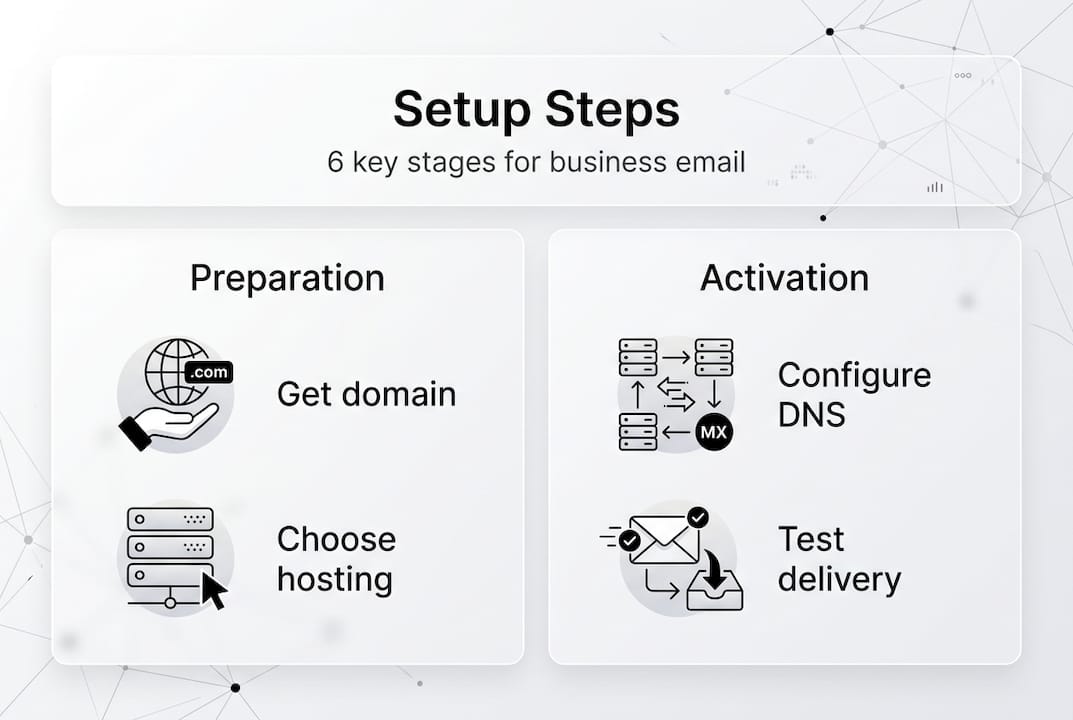
Setting up a professional business email transforms how clients and partners perceive your operation. Without a custom domain email, you risk appearing unprofessional or even untrustworthy, potentially costing you valuable opportunities. This guide walks you through the complete process of establishing your business email in 2026, from securing the right domain and hosting to configuring DNS records and verifying everything works perfectly. You’ll learn exactly what you need before starting, how to avoid common pitfalls, and best practices for maintaining a secure, reliable email system that strengthens your business credibility.
Preparing to set up your business email
Before diving into technical setup, you need two fundamental components: a custom domain name and reliable email hosting. Your domain serves as your business identity online, appearing after the @ symbol in your email address. Without owning your domain, you’re stuck with generic providers that undermine professional credibility.
Choosing the right business email hosting determines your email system’s reliability, security features, and scalability. Small businesses typically consider three main hosting approaches: bundled hosting with their website provider, dedicated email hosting services like Google Workspace or Microsoft 365, or self-hosted solutions through their own servers. Each option offers different trade-offs between cost, control, and technical complexity.
Comparing your hosting options helps you make an informed decision:
| Hosting Type | Monthly Cost | Best For | Key Features |
|---|---|---|---|
| Bundled Website Hosting | $10-$30 | Small teams, simple needs | Basic email, limited storage, easy setup |
| Google Workspace | $6-$18 per user | Growing businesses | 30GB+ storage, collaboration tools, mobile apps |
| Microsoft 365 | $6-$22 per user | Office integration needs | Outlook, Teams, document editing, enterprise features |
| Self-Hosted | $50-$200 setup + maintenance | Tech-savvy owners | Complete control, customization, higher complexity |
Pro Tip: Start with a hosting plan that allows easy upgrades as your team grows. Migrating email systems later creates unnecessary downtime and complexity.
Before beginning setup, gather these essential items:
- Your domain registrar login credentials for DNS access
- Email hosting account details and control panel login
- List of email addresses you want to create
- Preferred email client software or apps you’ll use
- Documentation from your hosting provider about their specific MX records
Many small business owners underestimate the importance of choosing scalable hosting. Your initial needs might be modest, but as you hire employees or expand services, you’ll need additional email accounts with consistent functionality. Selecting a provider that grows with you prevents costly migrations and service interruptions down the road.

Step-by-step guide to setting up your business email
With your domain and hosting ready, follow this systematic process to establish your business email system. Each step builds on the previous one, so complete them in order to avoid configuration conflicts.
Access your domain’s DNS management panel. Log into your domain registrar account and locate the DNS or nameserver settings section. This control panel allows you to direct email traffic to your hosting provider. If you recently purchased your domain, DNS changes may take 24-48 hours to propagate globally, so plan accordingly.
Configure MX records pointing to your email host. Your hosting provider supplies specific MX record values that tell the internet where to deliver your emails. Add these records exactly as provided, including priority numbers that determine backup routing if the primary server is unavailable. Proper DNS configuration prevents delivery failures and ensures messages reach their destination reliably.
Create individual email accounts through your hosting control panel. Navigate to your email hosting dashboard and add accounts for each team member or department. Set strong initial passwords and configure mailbox storage limits based on expected usage. Most providers allow unlimited accounts, but storage caps per mailbox vary significantly between plans.
Connect your email accounts to preferred email clients. Whether you use Outlook, Apple Mail, Thunderbird, or mobile apps, you’ll need specific server settings from your host. Input the incoming mail server (IMAP or POP3), outgoing mail server (SMTP), port numbers, and authentication requirements. IMAP is generally preferred because it syncs across multiple devices, while POP3 downloads messages to a single location.
Send test messages to verify proper functionality. Email yourself from an external account and reply to confirm two-way communication works. Check that sent messages don’t land in spam folders, which indicates potential authentication issues. If test emails fail, double-check your MX records have fully propagated and your client settings match your provider’s documentation exactly.
DNS propagation represents the most common source of setup delays. Even with correct configurations, changes can take anywhere from one hour to 48 hours to spread across global DNS servers. During this period, some emails might deliver while others bounce, creating temporary inconsistency that resolves automatically once propagation completes.
Common setup mistakes and troubleshooting tips
Even experienced users encounter obstacles when configuring business email systems. Recognizing these frequent errors helps you diagnose and resolve issues quickly, minimizing disruption to your business communications.
DNS misconfiguration tops the list of setup problems. Small business owners often add MX records without removing old ones from previous providers, creating conflicting instructions that confuse mail servers. Always delete outdated MX records before adding new ones. Another common mistake involves incorrect priority values, where lower numbers indicate higher priority but users accidentally reverse this logic.
Email client settings cause significant frustration when entered incorrectly:
- Wrong server addresses or port numbers prevent connection entirely
- Mismatched security settings (SSL/TLS) trigger authentication failures
- Incorrect username formats, some hosts require full email addresses while others use only the prefix
- Disabled SMTP authentication blocks outgoing mail even when incoming works perfectly
Spam filtering problems emerge when authentication protocols aren’t properly configured. Modern email requires SPF, DKIM, and DMARC records to prove your messages originate from legitimate sources. Without these security measures, major providers like Gmail and Outlook automatically flag your emails as suspicious, relegating them to junk folders where clients never see them.
Pro Tip: Change your email password every 90 days and use a unique password different from other accounts. Compromised credentials are the leading cause of business email breaches.
Security risks multiply when business email lacks proper protection. A single compromised account can expose client data, enable financial fraud through impersonation, and damage your reputation permanently. Implementing basic security measures from day one prevents catastrophic breaches that cost far more to remediate than prevent.
When troubleshooting persistent delivery issues, check your hosting provider’s email logs. These records show exactly where messages fail in the delivery chain, whether it’s DNS resolution, server rejection, or recipient filtering. Most control panels include log viewers that display recent activity and error codes pointing to specific problems.
Firewall and antivirus software sometimes block email client connections, mistaking legitimate traffic for threats. If you’ve verified all settings are correct but still can’t connect, temporarily disable security software to test whether it’s interfering. If disabling resolves the issue, add exceptions for your email client and required ports rather than leaving protection disabled.
Verifying your business email and best practices for ongoing use
After completing setup and resolving any initial issues, thorough verification confirms your email system functions reliably. Testing catches edge cases that might not surface during basic configuration but could cause problems with real business correspondence.
Send test emails to multiple external providers, not just one. Gmail, Outlook, Yahoo, and smaller regional providers all implement different spam filters and delivery rules. A message that arrives perfectly in Gmail might land in Outlook’s junk folder, indicating authentication issues you need to address. Include attachments in some test messages to verify file transfers work correctly and don’t trigger size limit errors.
Check both your inbox and spam folder when testing. If test messages consistently appear in spam, review your SPF, DKIM, and DMARC records. These authentication protocols tell receiving servers your emails are legitimate, dramatically improving deliverability rates. Regular verification and monitoring maintain your sender reputation and protect business communications from being filtered incorrectly.
Establish these best practices for professional email management:
- Create a standardized email signature with your name, title, phone number, and website link
- Set up email templates for common responses to save time and maintain consistency
- Organize incoming mail with folders or labels based on projects, clients, or urgency
- Schedule specific times for checking email rather than responding reactively all day
- Archive old messages regularly to keep your mailbox under storage limits
Security measures protect your business from increasingly sophisticated email threats. Enable two-factor authentication on every email account, requiring a code from your phone in addition to your password. This single step blocks the vast majority of account takeover attempts, even if someone obtains your password through phishing or data breaches.
Monitor your email activity logs weekly for suspicious patterns. Unexpected login locations, failed authentication attempts, or unusual sending volumes indicate potential compromises requiring immediate action. Most hosting providers offer activity reports showing when and where accounts were accessed, helping you spot unauthorized use quickly.
Back up important emails monthly to protect against accidental deletion, server failures, or account compromises. Many email clients support automatic backup to local storage or cloud services, creating redundant copies of critical business correspondence. In the event of a catastrophic failure, these backups allow you to restore communications and continue operations with minimal disruption.
Explore professional website and email solutions for your business
Setting up business email yourself works well when you have time and technical comfort. However, many small business owners prefer focusing on their core operations rather than wrestling with DNS records and server configurations. Vegas Solutions handles the entire process for you, from domain registration through email setup and ongoing maintenance, so you deal with one point of contact instead of juggling multiple providers.
Our monthly packages include professional email hosting alongside your website, eliminating the complexity of coordinating separate services. We configure all authentication records, set up your email accounts, and ensure everything works perfectly before you start using it. If you’re curious how a professional website and email system could strengthen your business presence, request a custom demo for $69, credited toward the build and refundable until you approve it. When you move forward, we transform that demo into your live site and continue managing everything so you can focus on growing your business. Check our transparent pricing to see how affordable professional web services can be.