

67% of small businesses experience website downtime every year, and the average cost runs $427 per minute. For a small business or self-employed professional, that's not just an inconvenience. It can mean lost sales, damaged credibility, and hours of recovery work. A website backup is simply a saved copy of your entire site that you can restore when something goes wrong. This guide covers what backups are, why they matter, which methods work best, and the practical steps you can take right now to protect your online presence.
Key Takeaways
| Point | Details |
|---|---|
| Backup is essential | Regular website backups protect your business from data loss, downtime, and attacks. |
| Files and databases matter | A complete backup includes both website files and the database that stores your content. |
| Automate and verify | Set up automatic, scheduled backups and test restores regularly to guarantee recovery. |
| Follow 3-2-1 rule | Store at least three copies, on two media types, with one stored offsite for true resilience. |
| Don't trust just your host | Always keep a backup you control in a separate location for full safety. |
Why Website Backups Matter for Your Business
Your website faces real threats every single day. Hackers, malware, accidental file deletions, and server failures are not rare events reserved for large corporations. They happen to small businesses constantly, and the consequences can be severe.
Common risks that make backups essential include:
- Cyberattacks and malware that corrupt or delete your site files
- Accidental deletion by you, a team member, or a plugin update gone wrong
- Server failures at your hosting provider that wipe out data
- Ransomware that locks you out of your own content
- Software conflicts after a CMS or plugin update
46% of SMBs face cyberattacks, and a striking 43% of restore attempts fail when businesses haven't maintained proper backups. That second number is the one that should concern you most. Having a backup that doesn't actually restore is the same as having no backup at all.
"It won't happen to me" is the most expensive assumption a small business owner can make. Cyberattacks and data loss don't discriminate by business size.
Many business owners assume their web host handles everything. In reality, most hosts offer limited or infrequent backups that may not cover your full site. Understanding why websites need backups and the basics of website security gives you a much clearer picture of what you're actually protected against.
What Is a Website Backup? Core Concepts Explained
A website backup is a complete saved copy of your site that can be used to restore it to a previous working state. It's not just your homepage or a screenshot. A true backup captures everything your site needs to function.
The core components of a full website backup include:
- Site files: themes, templates, and core CMS files
- Plugins and extensions: all installed add-ons and their settings
- Media files: images, videos, and uploaded documents
- Database: the content, user data, orders, and settings stored behind the scenes
- Configuration files: server and application settings
Full website backups must include both files and databases, and following the 3-2-1 rule improves your resilience significantly. The 3-2-1 rule means keeping 3 copies of your data, stored on 2 different types of media, with 1 copy stored offsite. For example, one copy on your server, one on an external drive, and one in cloud storage.

Pro Tip: Never assume your database is backed up just because your files are. Many backup tools default to files only. Always confirm your backup includes the database, or your restored site will be missing all its content.
Automation is equally important. Manual backups get skipped. Scheduling automatic backups removes human error from the equation. Pair automation with regular verification, and you'll know your backups are actually usable when you need them.
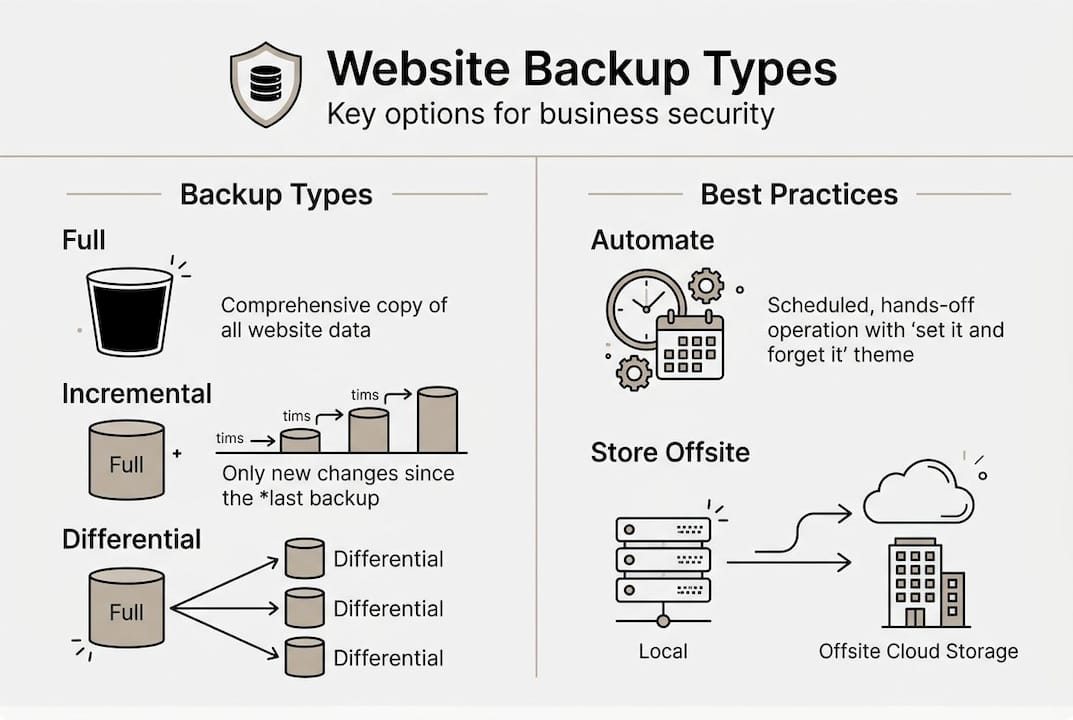
Types of Website Backups: Full, Incremental, and Differential
Not all backups are created equal. The three main types each have different strengths, and choosing the right one depends on how often your site changes and how much storage you want to use.
| Backup type | What it captures | Speed | Storage use | Best for |
|---|---|---|---|---|
| Full | Everything | Slowest | Highest | Weekly baseline |
| Incremental | Changes since last backup | Fastest | Lowest | Daily updates |
| Differential | Changes since last full backup | Medium | Medium | Mid-week safety net |
Here's how to combine them for a small business:
- Run a full backup weekly to create a clean, complete restore point
- Run incremental backups daily to capture any changes made since the last backup
- Store all copies offsite so a server failure doesn't take your backups with it
- Label and date each backup so you can quickly identify which version to restore
- Keep at least two weeks of history so you can roll back past a recent problem
For most small business websites, combining weekly full backups with daily incremental backups gives you strong protection without eating up excessive storage.
How Website Backup, Disaster Recovery, and Redundancy Differ
These three terms get used interchangeably, but they mean very different things. Confusing them can leave you with a false sense of security.
| Term | What it does | What it protects against | What it doesn't cover |
|---|---|---|---|
| Backup | Saves a copy of your data | Data loss, hacks, accidental deletion | Doesn't keep your site live |
| Disaster recovery | Restores full site operations | Extended downtime, system failure | Not a substitute for backups |
| Redundancy | Keeps current systems running | Hardware failure, network outages | Cannot undo data corruption |
Backup preserves a copy. Disaster recovery restores full functions and minimizes downtime. Redundancy keeps systems running in the first place. You need all three working together for complete protection.
Think of it this way: redundancy keeps your site running when hardware fails, disaster recovery gets you back online quickly after a major incident, and backups are your safety net for everything else. Web security and backup strategies work hand in hand.
Best Practices for Website Backups: Schedule, Storage, Verification
Knowing backup theory is useful. Having a working backup system is what actually protects your business. Here are the practices that matter most:
Schedule
Automate your backups. Weekly full backups combined with daily incremental backups work well for most small business sites. E-commerce sites or sites updated daily may benefit from daily full backups. The key is consistency — gaps in your schedule create gaps in your protection.
Storage
Apply the 3-2-1 rule. Three copies, two different storage types, one offsite. Cloud storage services like Google Drive, Dropbox, or dedicated backup services like BackupBuddy or UpdraftPlus for WordPress are reliable offsite options. Never rely solely on your hosting provider's backup — if their servers go down, so do their backups.
Verification
Test your restores. This is the step most businesses skip and regret. A backup you've never tested is a backup you cannot trust. Schedule a quarterly test restore to confirm your backup files are complete and functional. This is what separates businesses that recover quickly from those that lose everything.
Retention
Keep multiple versions over time. A minimum of two weeks of backup history lets you roll back to a point before a problem started — which matters when malware has been silently present for days before you notice it.
For a deeper look at how this fits into overall site maintenance, see our guides on security tips for business websites and website maintenance checklists.
Secure Your Website with Professional Backup Solutions
Setting up and maintaining a proper backup system takes time and technical knowledge most small business owners don't have — or want to spend. Manual processes get forgotten. Free hosting backups are often incomplete. Plugin-based solutions require ongoing monitoring.
Professional website management includes automated, verified backups as part of a complete care package. Vegas Solutions builds and manages websites for small businesses with security and reliability built in from day one. Our clients don't need to think about backups because we handle them — along with updates, monitoring, and performance optimization.
When something goes wrong, recovery is fast because the systems are already in place. That's the difference between worrying about your website and trusting that it's covered.
Get started with a free website demo to see how Vegas Solutions builds and protects websites for small businesses.
Frequently Asked Questions
What is a website backup?
A website backup is a complete saved copy of your website including all files, images, plugins, and database content. It allows you to restore your site to a previous working state after data loss, a cyberattack, or a failed update. A true backup covers both your site files and your database — not just one or the other.
How often should I back up my website?
For most small business websites, a weekly full backup combined with daily incremental backups provides strong protection. E-commerce sites or sites that change frequently should consider daily full backups. The right frequency depends on how much data you can afford to lose if something goes wrong.
What is the 3-2-1 backup rule?
The 3-2-1 rule means keeping three copies of your data, stored on two different types of media, with one copy stored offsite. For example: one backup on your server, one on an external drive, and one in cloud storage. This strategy ensures that no single failure — hardware, software, or physical — can destroy all your backups.
Does my web host back up my website?
Many hosting providers offer some form of backup, but these are often infrequent, incomplete, or not guaranteed. Hosting backups may not include your full database, may only retain a few days of history, and can be lost in the same server failure that took down your site. Always maintain an independent backup that you control and store separately.
What happens if I don't have a website backup?
Without a backup, recovering from a hack, server failure, or accidental deletion means rebuilding your site from scratch. This can cost thousands of dollars, weeks of time, and lost customer data that cannot be recovered. 43% of restore attempts fail even when businesses think they have backups — regular testing is just as important as the backup itself.